How to run your school on Mastree as school admin
Become school admin
- Open mastree.co.nz/school signed in with your school email.
- Press Ask to be school admin. We check with your school, then approve you.
Usage
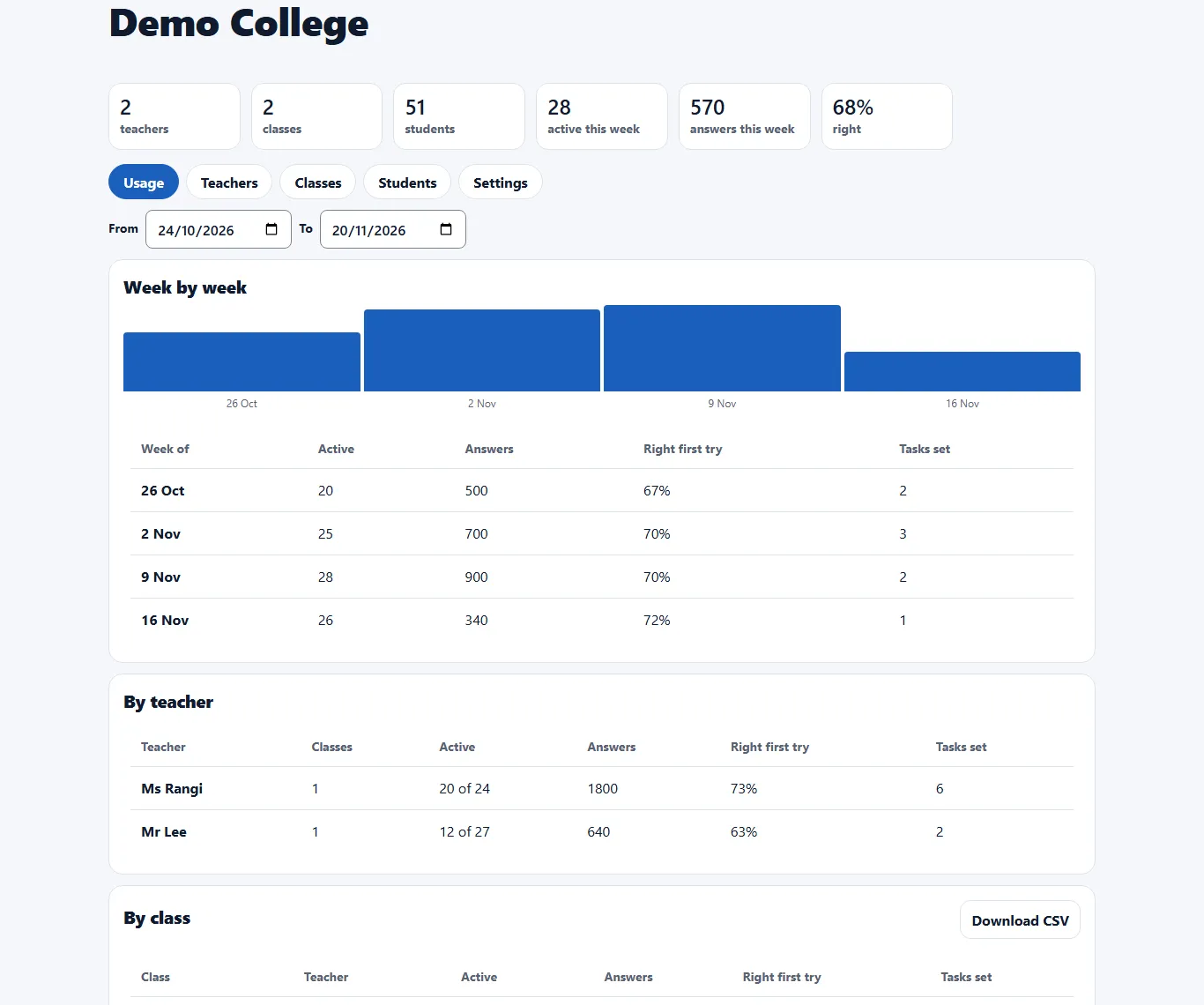
- Usage shows how your school uses Mastree between two dates: week by week, by teacher and by class, and the lessons and skills used most.
- Download CSV keeps the class table.
Teachers and classes
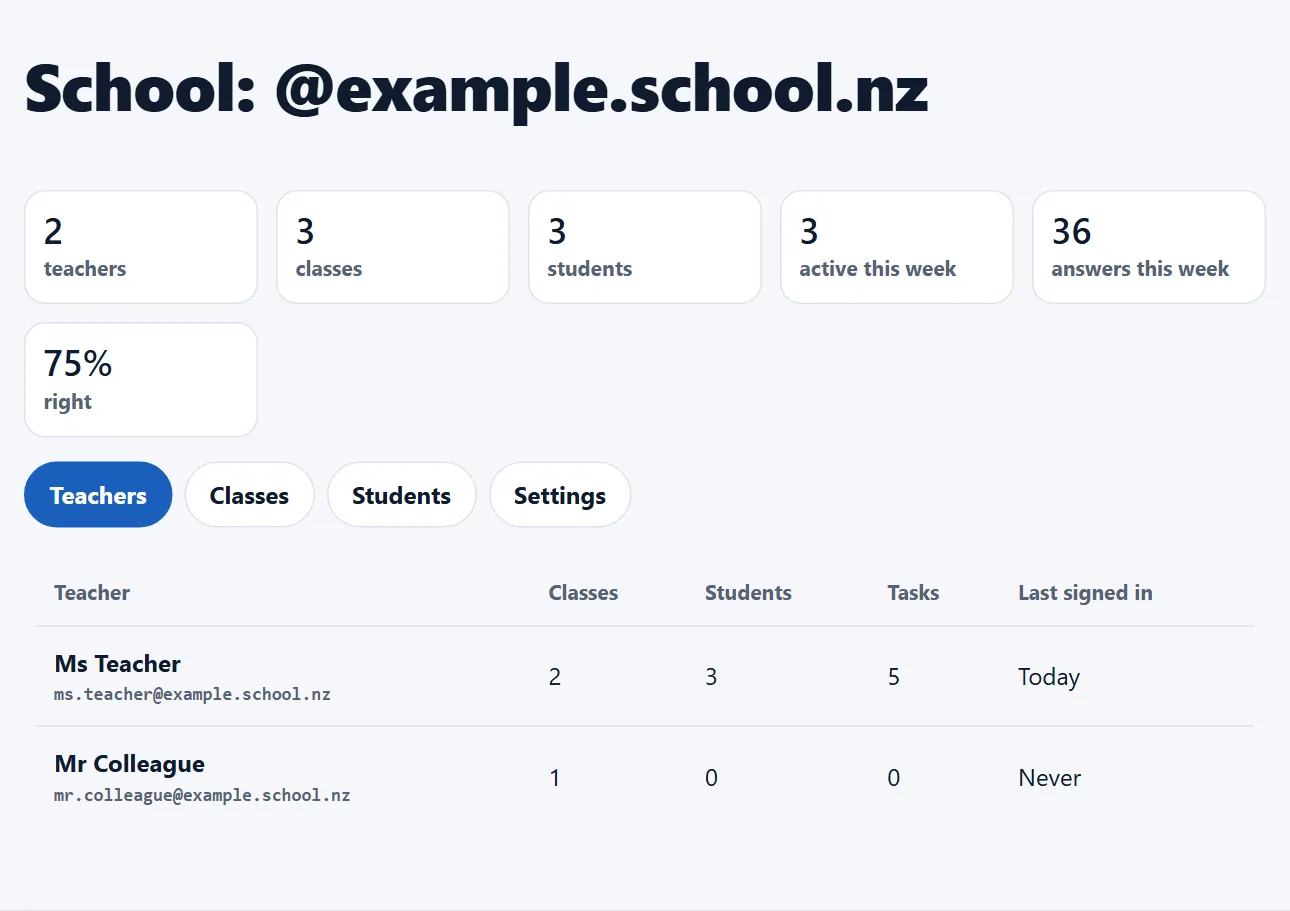
- Teachers lists every teacher at your school with their classes, students, tasks and last sign-in.
- Classes lists every class. Open one to see its students this week.
Students
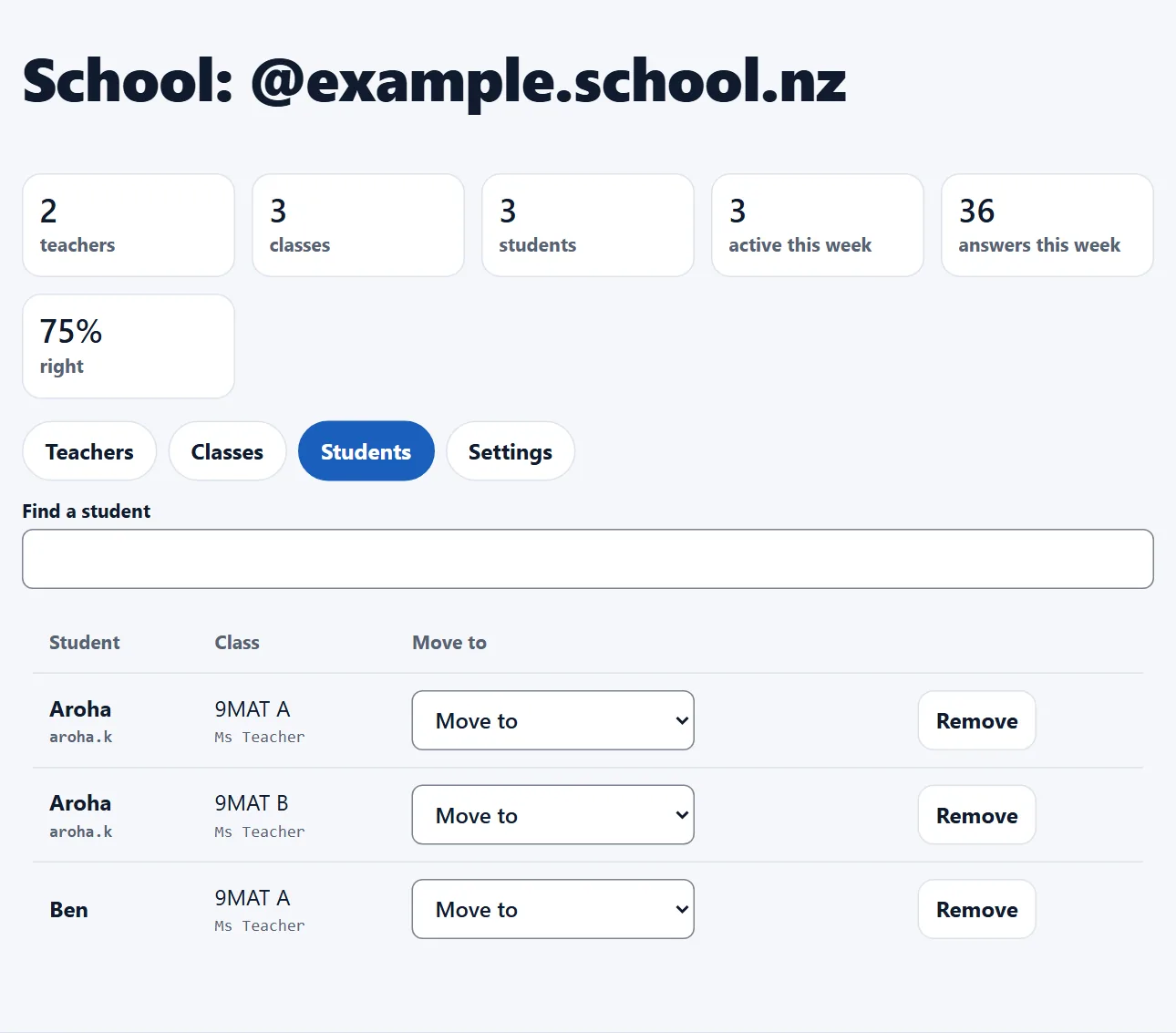
- Find a student by name or username.
- Pick a class under Move to, or press Remove to take them out of a class.
Settings
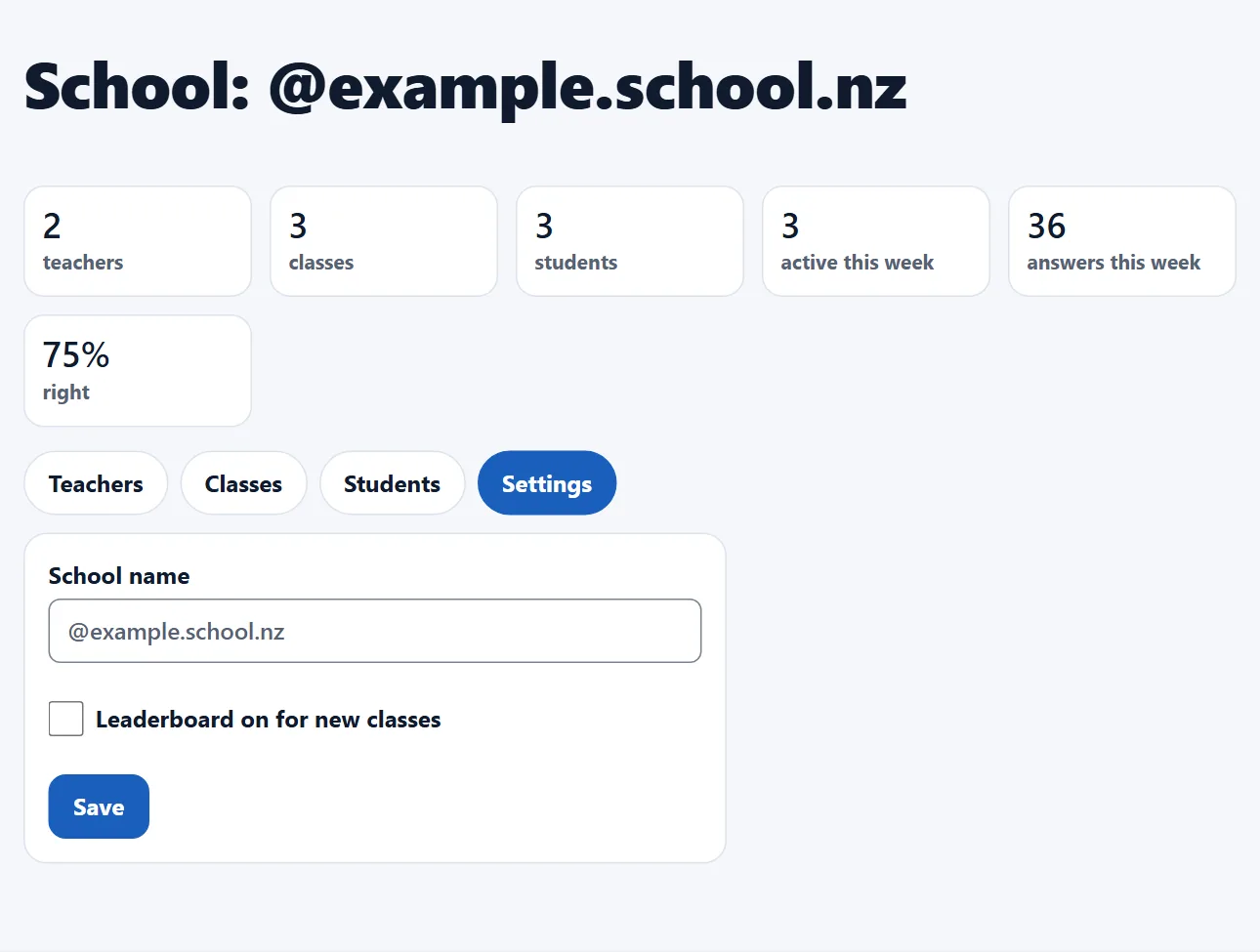
- Give your school its name, and choose whether new classes start with the leaderboard on.