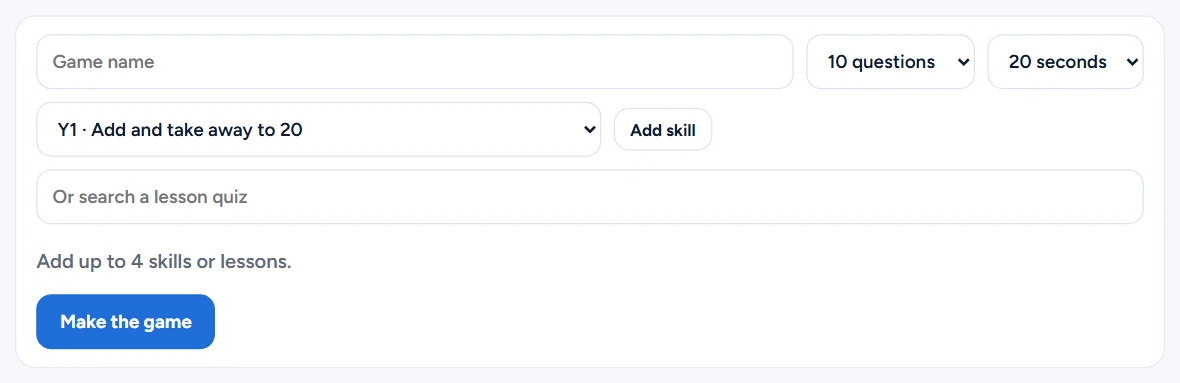
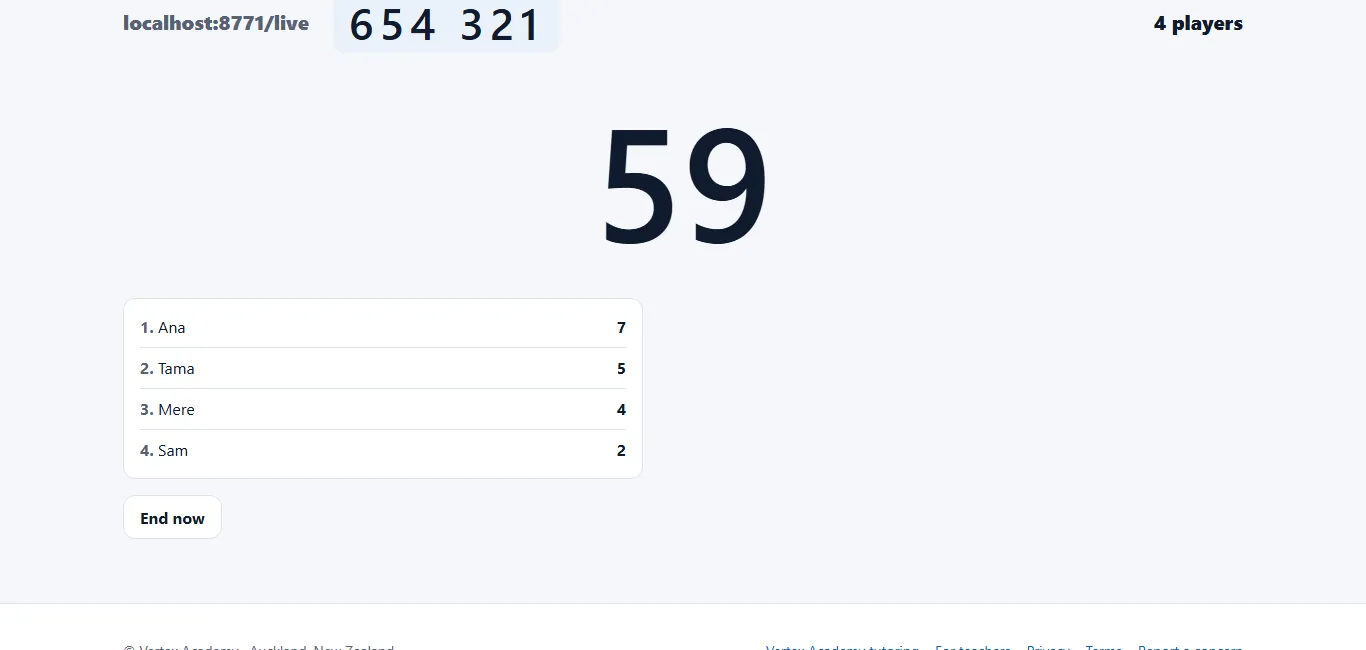
Sign in as a teacher with your school email, open a class at mastree.co.nz/classes and press Live game. Under a lesson's title, Live game starts one with that lesson's quiz.
Add up to four skills or lesson quizzes.
Choose 5 to 20 questions and 10 to 60 seconds a question, and give the game a name.
Press Make the game.
Students join
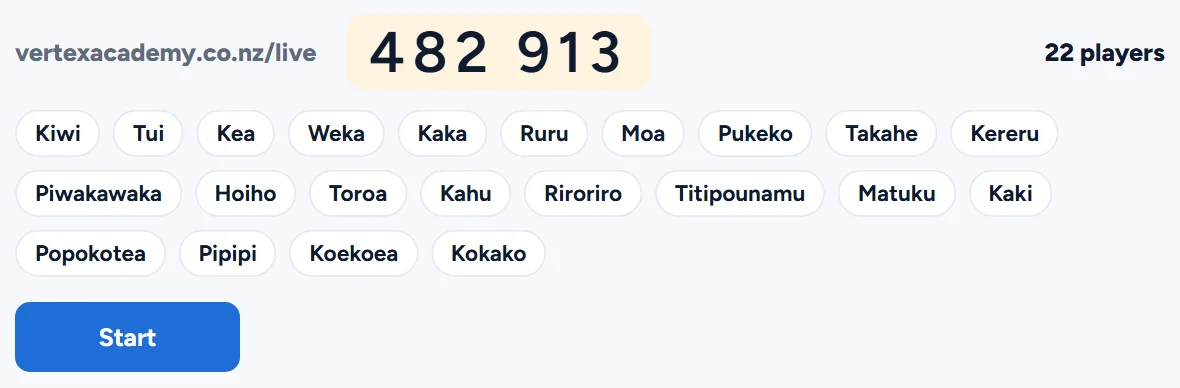
Put your screen on the board. It shows the address and a 6-digit code.
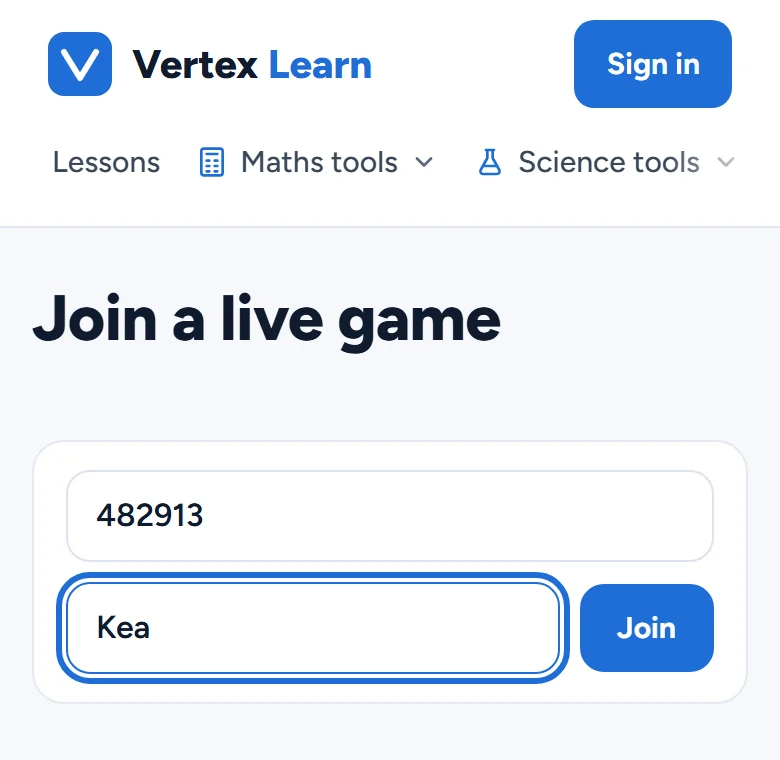
Students open mastree.co.nz/live on a phone or laptop and type the code and a nickname. They need no account or email.
Names appear as students join. Tap a name to remove it.
Press Start.
Play
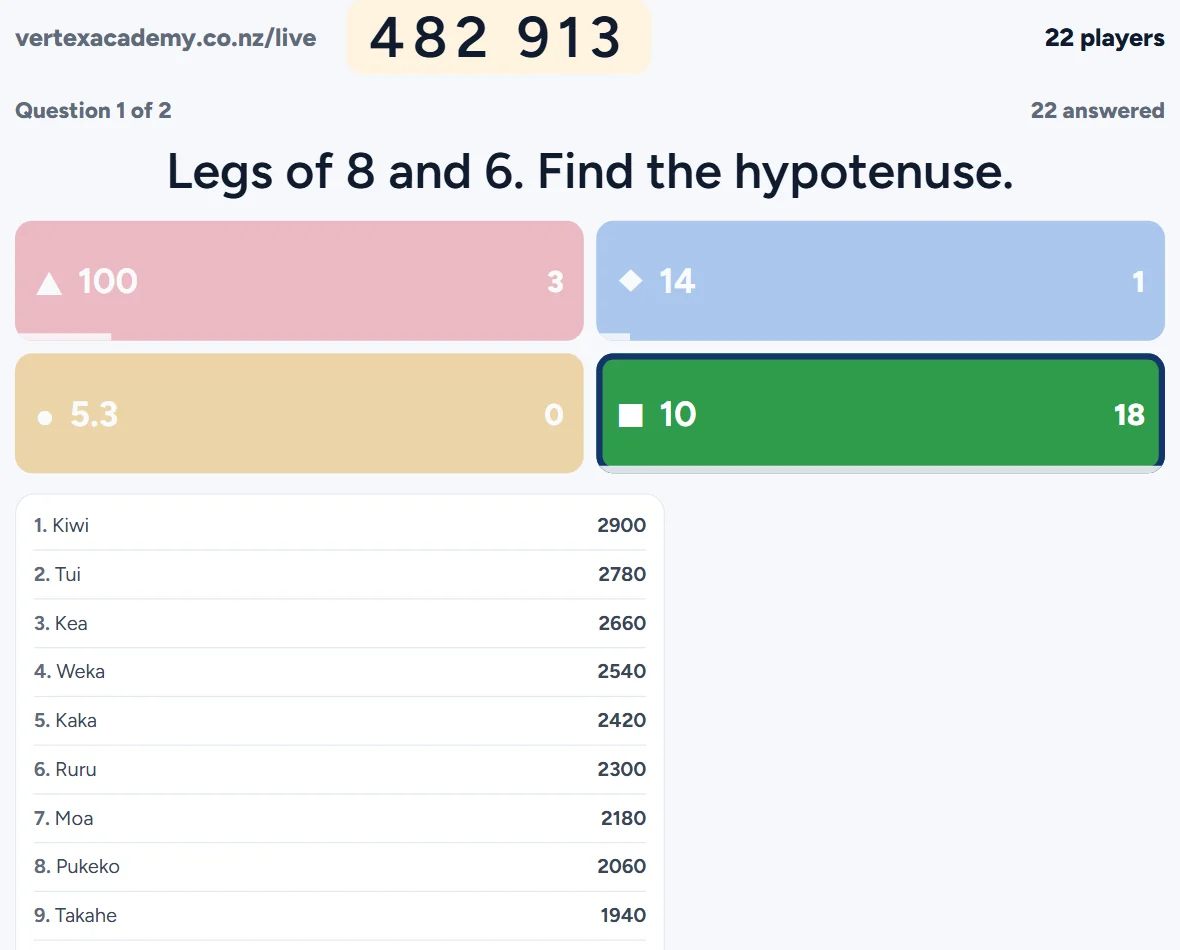
Each question shows on the board with a countdown, and students pick their answer on their phones.
The answer shows when time is up or everyone has answered. Press Show the answer to stop early.
The board shows how many students picked each answer and the top 10. A right answer scores more the faster it comes.
Press Next question, and at the end Final scores.
If the page reloads, open Live game again and press Resume.
Run a race
Under Game, pick Race, 60 seconds or Race, 2 minutes, then Make the game.
Press Start the race. Everyone works through the same questions at their own pace, typing the answer where it is a number or expression.
The board shows the clock and the top 10 as it runs. One point for each right answer.
Final scores show when the clock runs out, or press End now.